The Bedtime Lock: One Tap to Lights-Out, Automated
Brian · June 2026
The upgrade that actually changed our evenings: lock the phone at night with one tap, or on a hands-off schedule, using Lost Mode and a free Shortcut.
You'll need a Mac for one step (making the scrambled code, below). If you only have a Windows PC, you can't finish this one.
You've already set up your kid's phone using the main lockdown guide. (If not, do that first.) This is the upgrade that, honestly, did the most for my evenings: turning the phone off at night with Lost Mode, either one tap or on a fully automatic schedule. (Lost Mode is Apple's feature for a lost or stolen phone, it locks the screen down to a single message. You're just borrowing it as a nightly lock.)
You already saw Lost Mode work by hand from the SimpleMDM dashboard in the main guide. Here we wire it to a button on your own phone, and a bedtime schedule, using a free, built-in app called Shortcuts. It's the fiddliest part of the whole system, mostly one Base64 string that trips everyone up, so I've spelled that part out carefully.
Context
What you're building
Two iOS Shortcuts on the parent's phone: one that locks the kid's phone ("Turn Off Phone") and one that unlocks it ("Turn On Phone"), each a single tap. (The unlock one is just a copy of the lock one, so the real work is only one shortcut.) Then an optional automation that fires the lock at bedtime and the unlock in the morning, so you don't even have to tap.
Each button sends one quiet command to lock or unlock the phone. You'll gather three things as you go: a SimpleMDM API key, your kid's device ID, and one scrambled code you'll make from that key (it's how SimpleMDM knows the command is really from you).
Step 1 of 5
Create a SimpleMDM API key
⏱ about 5 min
First we'll create a special password (SimpleMDM calls it an API key) that lets your phone send the lock command.
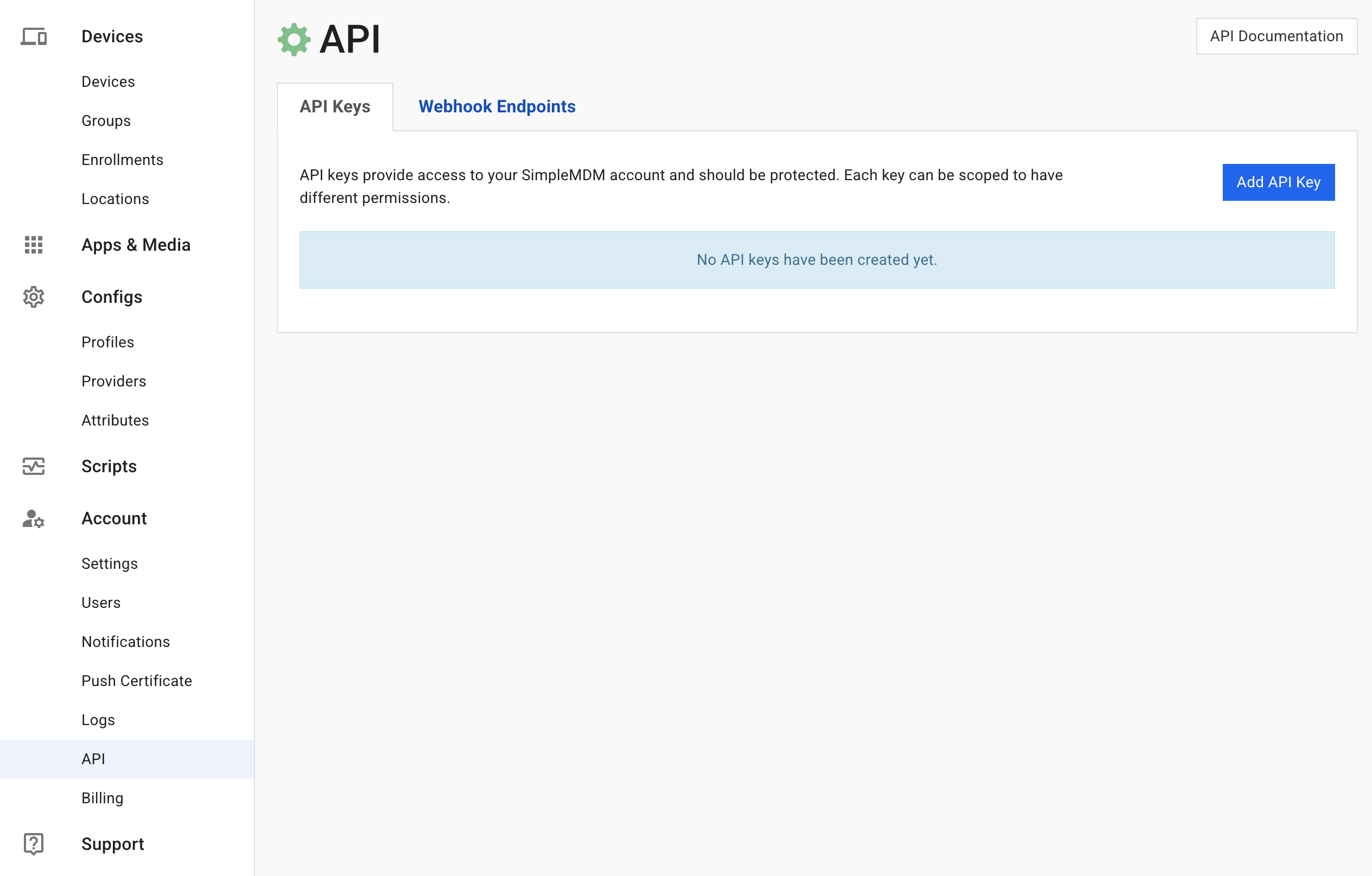
In SimpleMDM, open Account → API and click API Key.
SimpleMDM API Screen
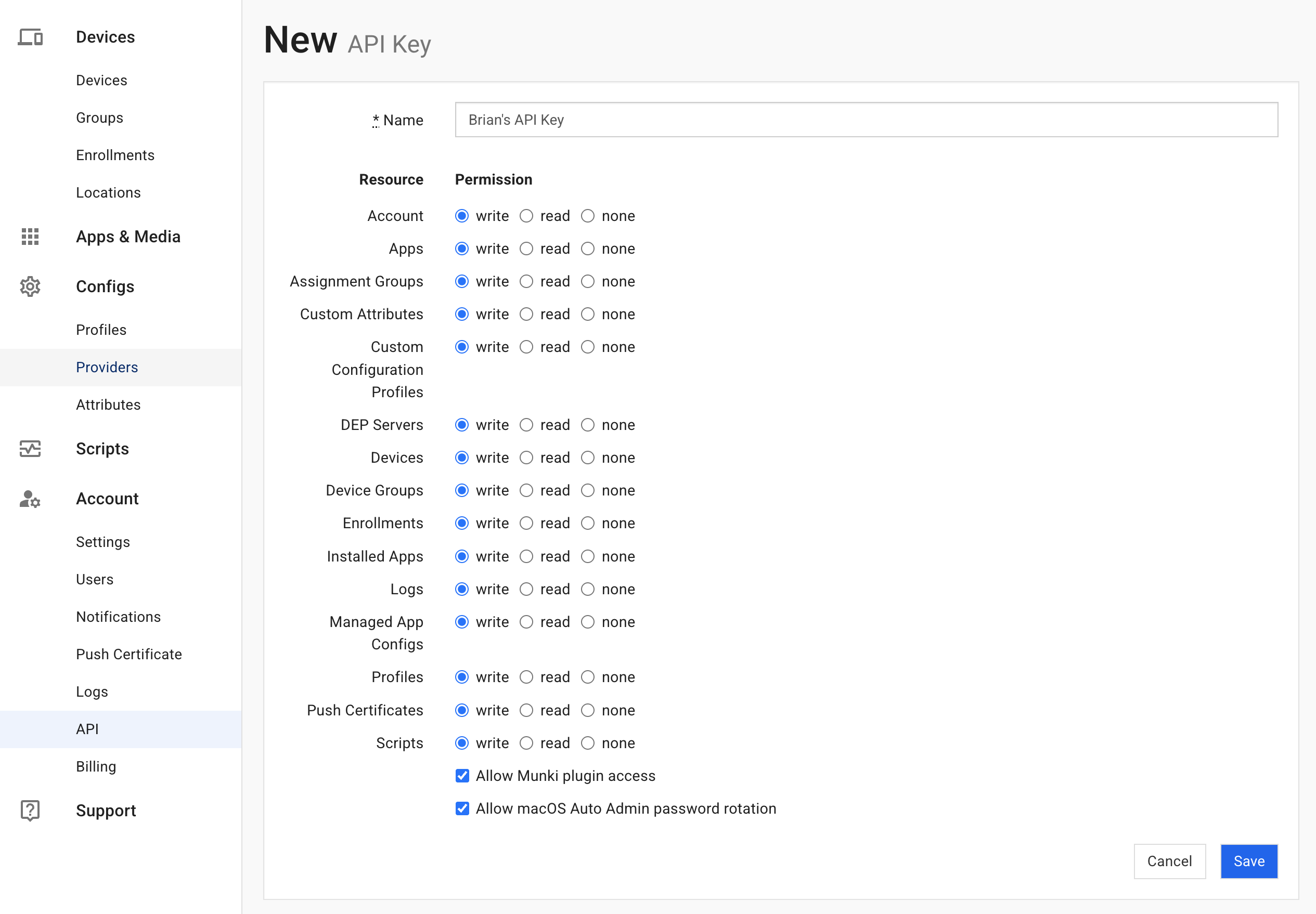
Type a name in the box and click Save. You can leave the default permissions, or tighten them if you want finer control.
SimpleMDM API New Key Screen
Once you save, the key appears below the name; click reveal to see it. Copy it and store it somewhere safe, like a password manager. Treat it like a password, anyone who has it can send commands to your devices.
Next: Get the device ID and prep the URL
Step 2 of 5
Get the device ID and prep the URL
⏱ about 5 min
Each shortcut points at one specific phone, identified by its device ID, a 7-digit number. Grab it from SimpleMDM: click the kid's device to open its Device Details screen, then read the ID out of the web address at the top of your browser (it's the string of numbers near the end).
SimpleMDM Device ID
Now build the URL the shortcut will call. Take the line below and drop your kid's device ID into the bracketed spot (remove the brackets too):
Keep that URL and your API key handy; you'll paste both into the shortcut next.
Next: Build the "Turn Off Phone" shortcut
Step 3 of 5
Build the "Turn Off Phone" shortcut
⏱ about 15 min
Get the parent phone and open the Shortcuts app (it's built in). On the Library tab, tap the + to add a new shortcut, then search for the Get Contents of URL action and add it.
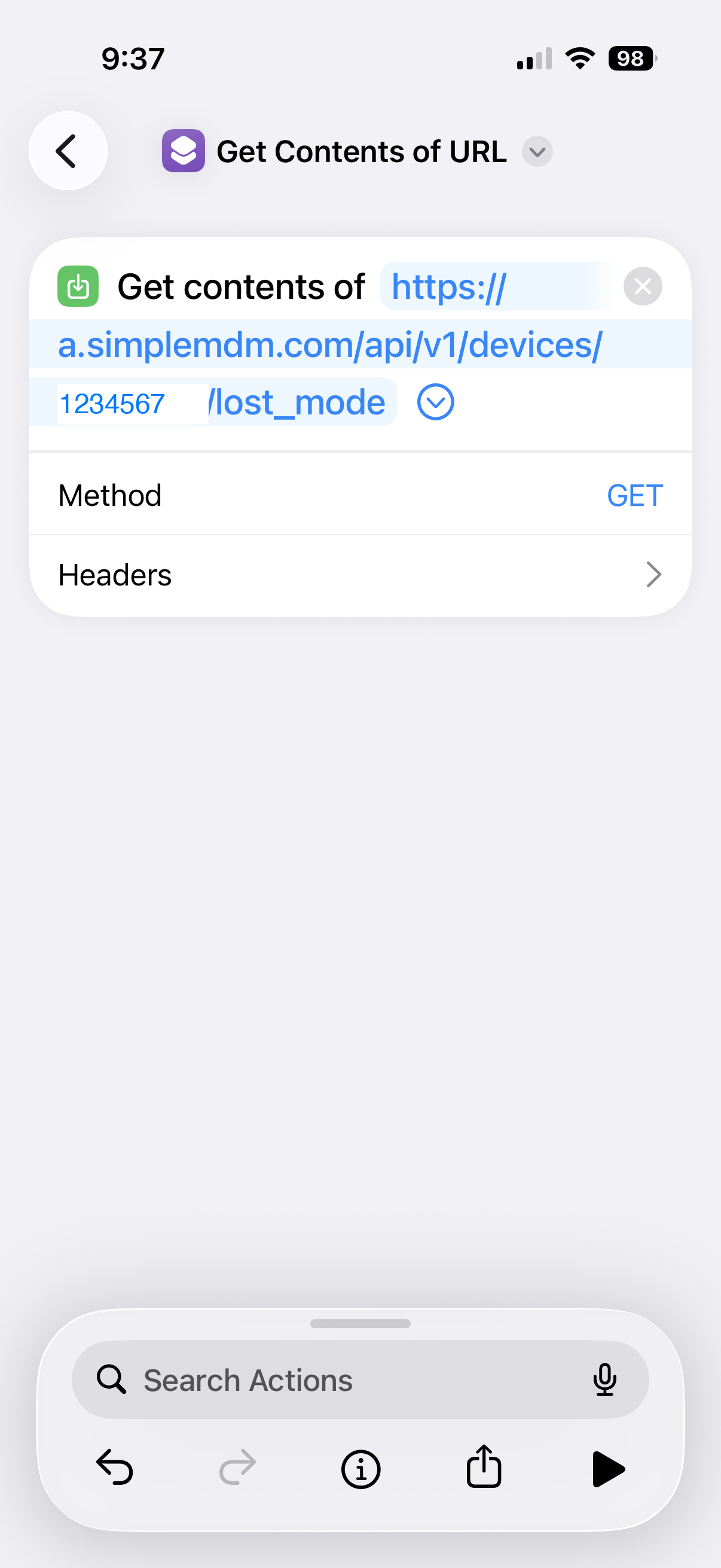
Tap URL and paste in the URL you prepared (the one with your kid's device ID). Leave Method on GET for the moment.
The Get Contents of URL action with the SimpleMDM URL pasted in
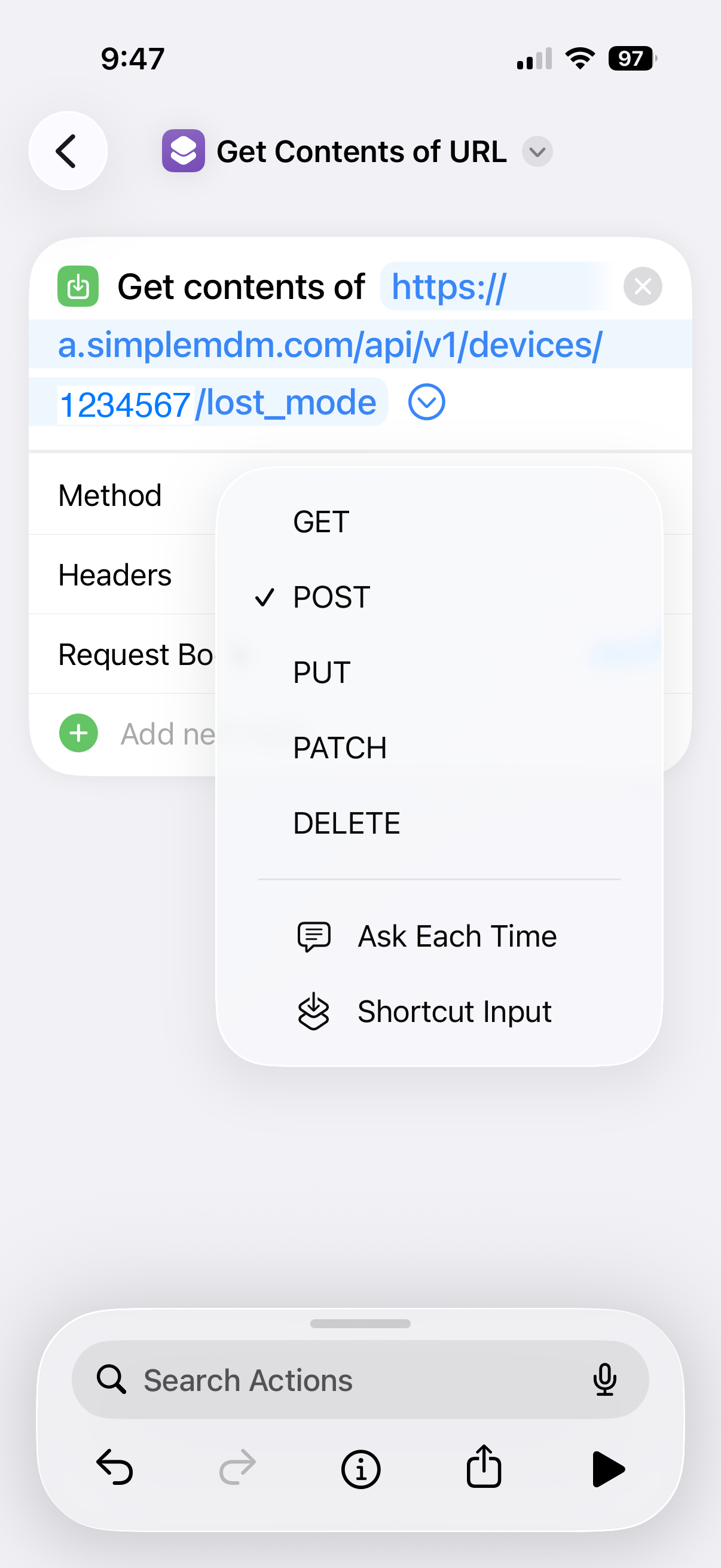
Tap GET and switch the method to POST.
Changing the request method to POST
Before you continue: make your scrambled code (the one fiddly part)
This is the step that trips everyone up, so slow down here. The plain-English version: SimpleMDM needs proof the command is really from you. The catch is that it doesn't want your API key typed in as-is. It wants your key (with a colon stuck on the end) converted into a scrambled string (the technical name is Base64). You make that string once and paste it in.
The simplest way to make it is on the same Mac you used for Apple Configurator:
Open the Terminal app (press Cmd+Space, type Terminal, press Return).
Paste the line below, swapping YOUR_API_KEY for the key you copied from SimpleMDM. Keep the colon right after it, inside the quotes:
echo 'YOUR_API_KEY:' | base64
Press Return. Terminal spits out a line of letters and numbers. That scrambled line is your Base64 string. Copy it.
The one thing almost everyone gets wrong here (I did too): keep the colon at the end of your key, inside the quotes. It's required, it stands in for the empty password SimpleMDM expects. Leave it off and you'll get an "Access denied" error.
Now back in the shortcut: tap Headers, then Add new header. For the name, type Authorization. For the value, type the word Basic, then a space, then paste your Base64 string, so the value reads Basic followed by your scrambled string.
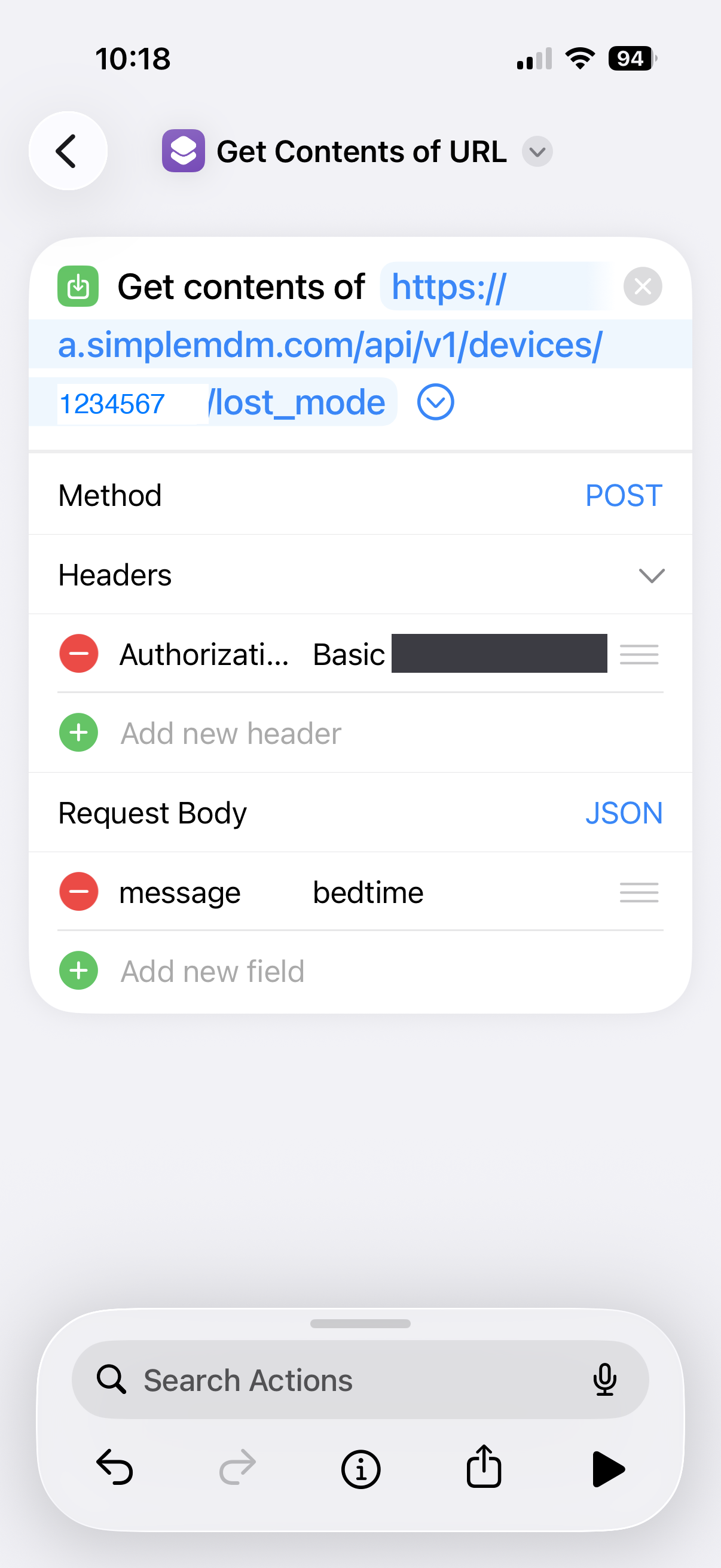
Last, under Request Body (leave it set to JSON), tap Add new field, name it message, and give it the words you want on the lock screen, like Bedtime. When everything's in, your action should look like this:
The finished action: POST method, an Authorization header, and a JSON message field
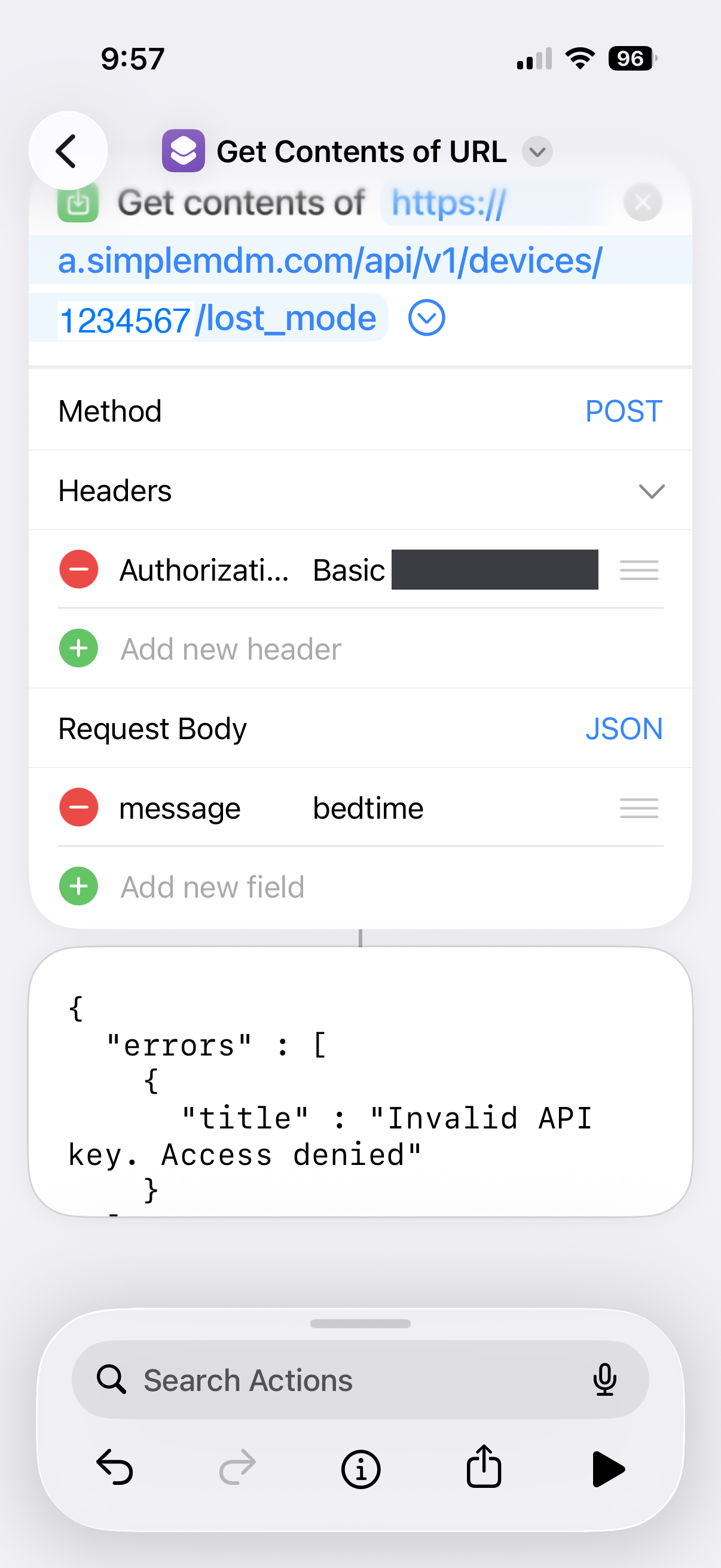
Seeing Invalid API key. Access denied? Nine times out of ten it's the Base64, not the key itself. Re-make it with the steps above, double-checking that you kept the trailing colon at the end of your key. A stray space or a hidden newline is the usual culprit.
The shortcut returning an "Invalid API key. Access denied" error
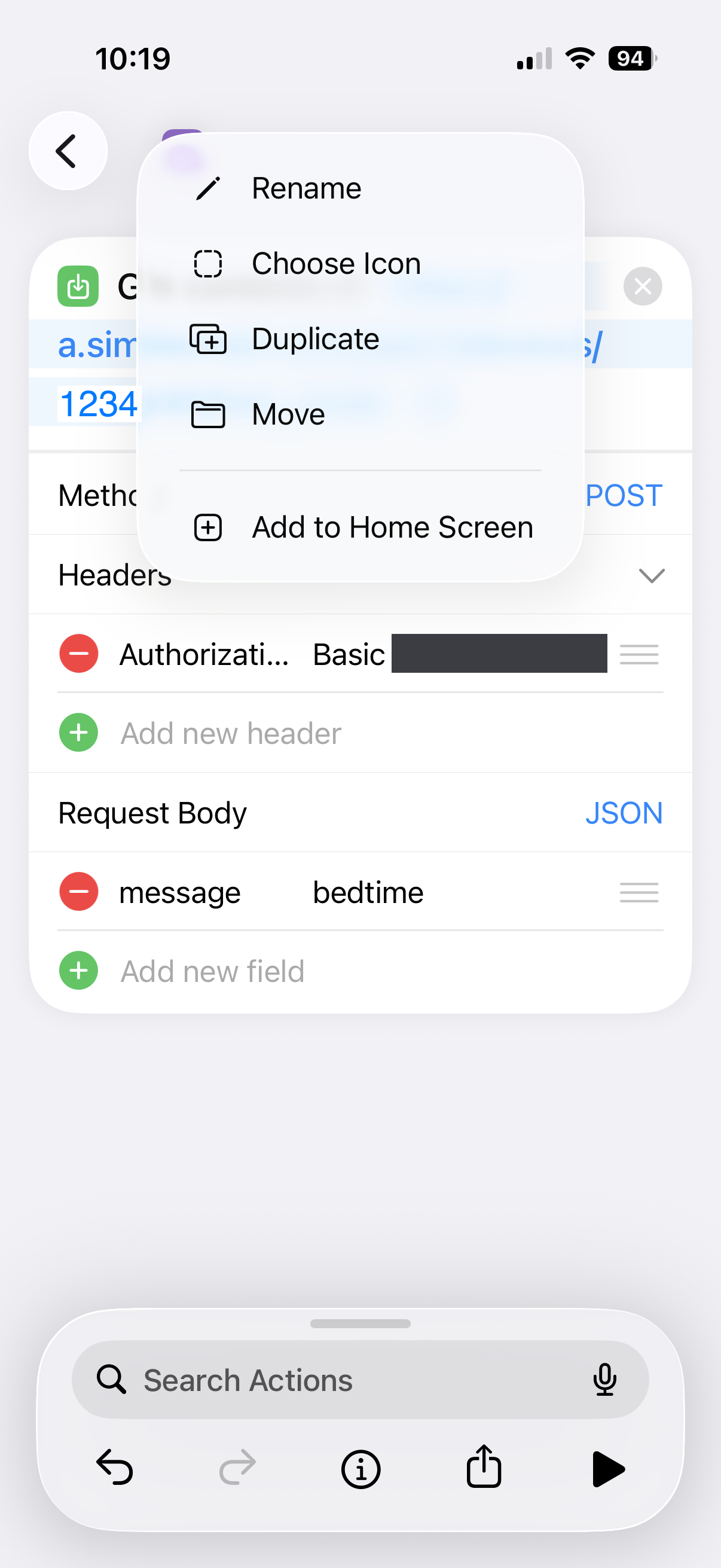
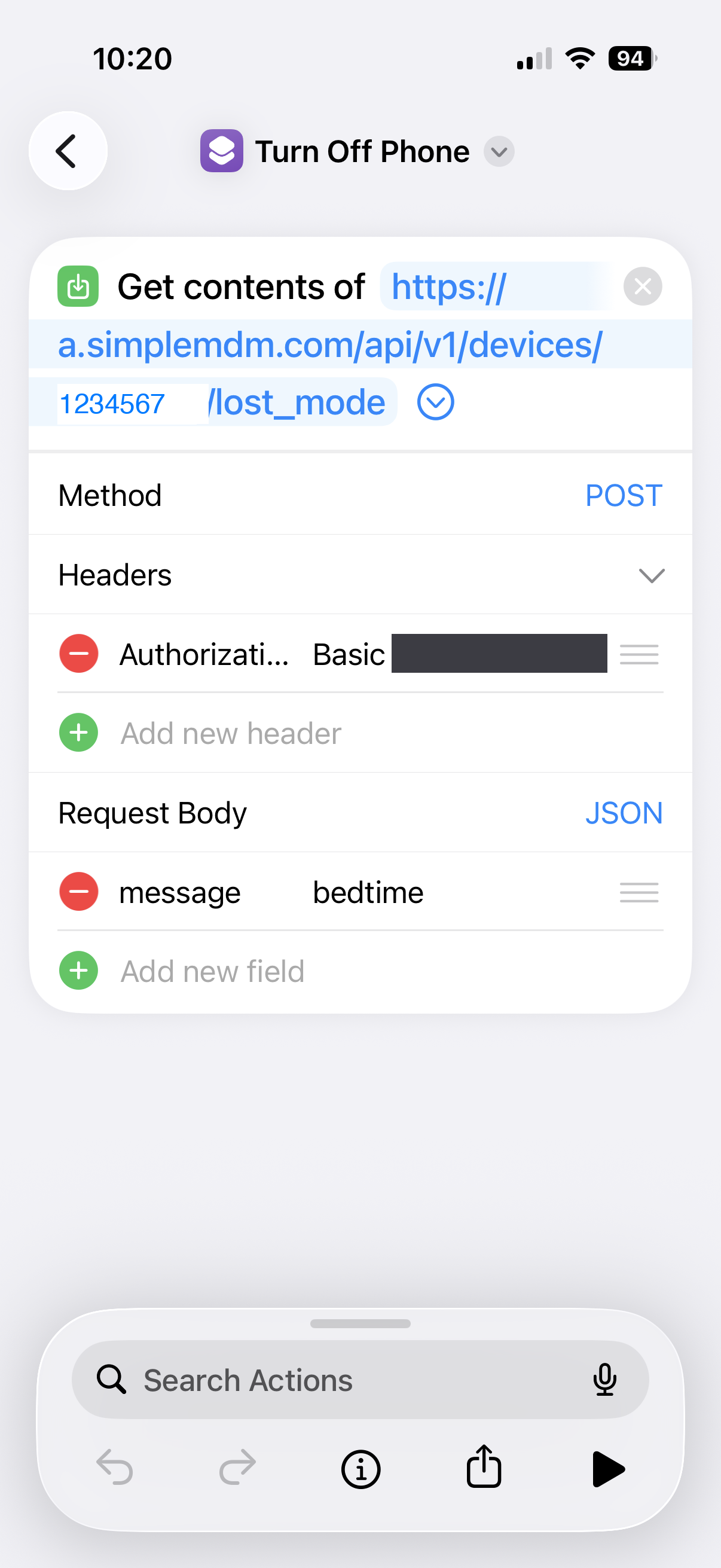
Tap the shortcut's name at the top, choose Rename, and call it "Turn Off Phone." While that menu is open, tap Add to Home Screen so it's one tap away at bedtime.
The shortcut menu with Rename, Duplicate, and Add to Home ScreenThe finished "Turn Off Phone" shortcut
Next: Make the morning unlock shortcut
Step 4 of 5
Make the morning unlock shortcut
⏱ about 5 min
Open that same menu on "Turn Off Phone" and tap Duplicate. In the copy, change just two things: switch the Method from POST to DELETE, and remove the message body field (DELETE doesn't need one). The URL and the Authorization header stay exactly the same. Rename this one "Turn On Phone" and add it to your home screen too. Now you've got a lock button and an unlock button.
Next: Put it on a schedule
Step 5 of 5
Put it on a schedule
⏱ about 5 min
Tapping the button at bedtime works fine, but you can also have it fire on a schedule. In Shortcuts, open the Automation tab and tap + to create a new one.
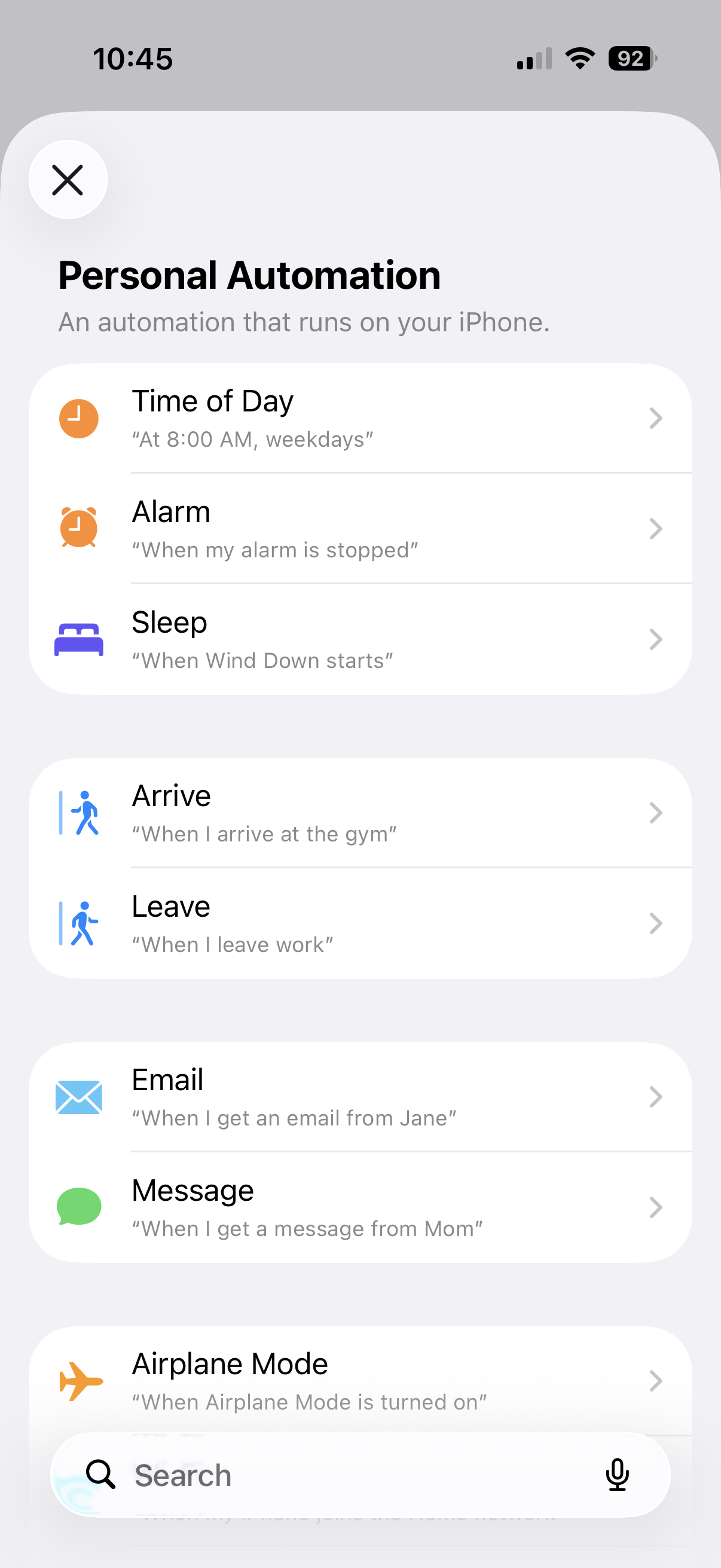
Choose Time of Day as the trigger.
The Personal Automation trigger list, with Time of Day at the top
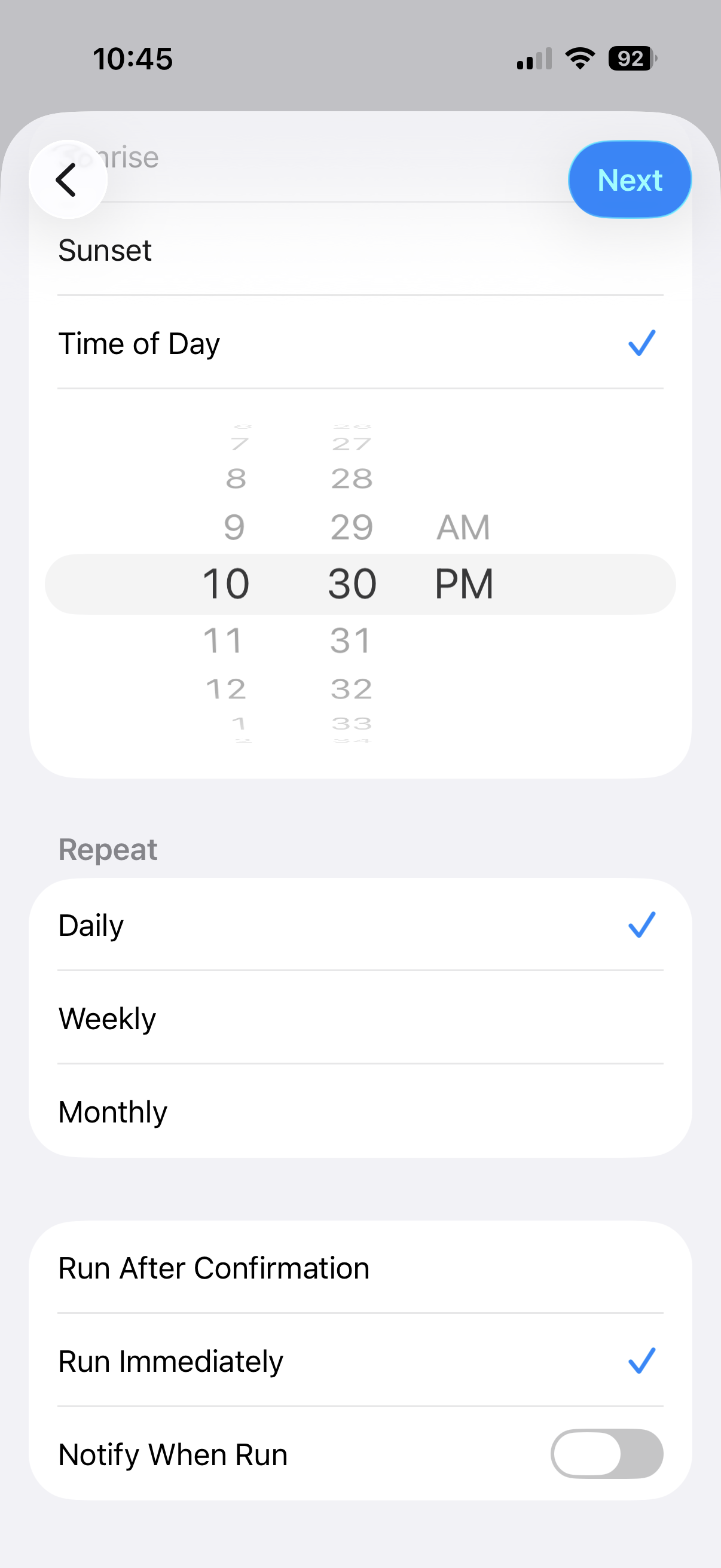
Set the time to your bedtime, set Repeat to Daily, and pick Run Immediately so it fires without stopping to ask you first. Tap Next.
Setting the automation to a daily time with Run Immediately selected
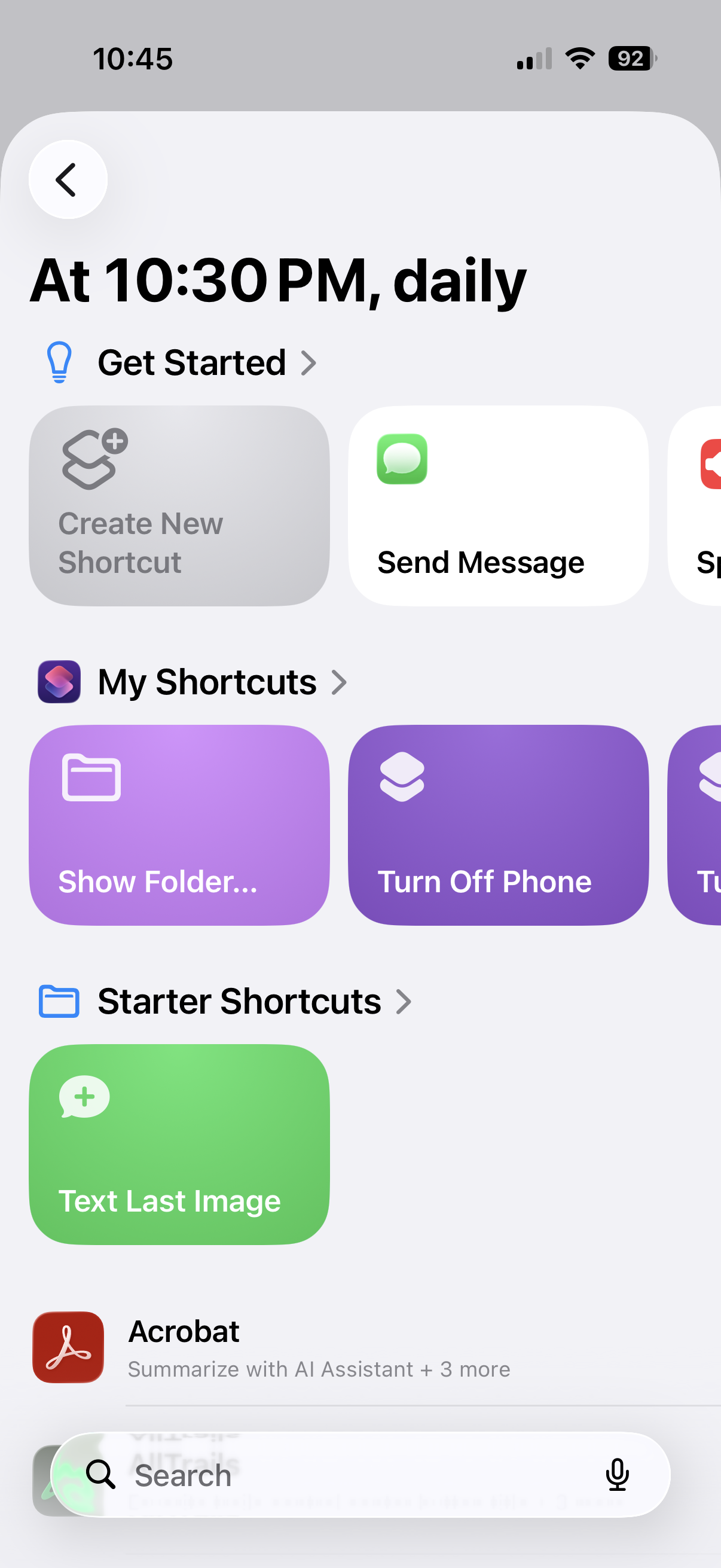
Choose your Turn Off Phone shortcut as the thing to run.
Selecting the Turn Off Phone shortcut for the automation to run
Add a matching morning automation that runs Turn On Phone, and the phone locks and unlocks itself on schedule, no tapping required.
That's the upgrade that quieted my nights. When you're ready for the other one, the NextDNS web filter add-on(coming soon) adds an explicit porn/ads/malware block on top of everything you've built.
Want the printable version of this checklist?
I'll send the step-by-step PDF, plus a heads-up when an app or setting changes that affects your kid's phone.
B
Brian
I spent my career in security: the FBI, CrowdStrike, and now detection engineering. I'm also a dad who got beaten down by Screen Time like everyone else. I write this for the parent I was not long ago. More about why I built this →

Questions & comments
I approve everything on-topic, including criticism. I remove only spam, abuse, personal attacks, and off-topic noise.
No comments yet. Have a question about the guide overall? Ask below. (You can also comment on a specific step above.)